You can update Khernet at any time with just one click.
Note
Starting with version 0.17.0.0, updates are never installed automatically—you always choose when to update.
There are two ways to update Khernet:
- Online (recommended): You’ll be notified when a new update is available. With one click, it will download and install (requires Internet).
- Offline: Manually download the update file and point Khernet to it.
Info
For security reasons, always download update files only from trusted sources. Using unverified files can damage your application.
Online update
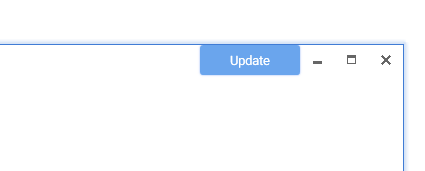
When a new update is available, an Update button will appear in the top-right corner of the main window.
Click it to start the update—Khernet will restart automatically once installation is complete.
Make sure your Internet connection is active to download updates.
Offline update
Offline updates are useful when your environment has no Internet access. In that case, you’ll need another machine with Internet access to download the installer.
Download the latest update file from the releases page:
KhernetInstaller-*.*.*.*.exe
(The version number
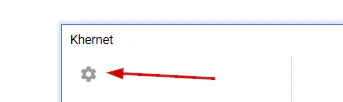
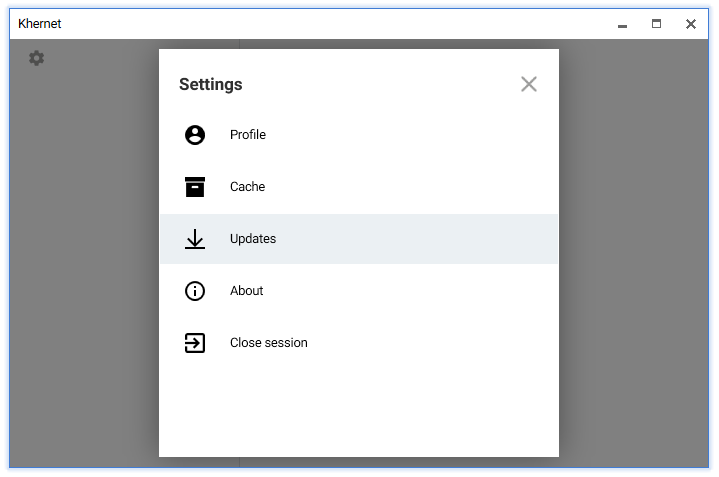
*.*.*.*changes with each release—for example:0.18.0.0.)Launch Khernet.exe, sign in, and click the Settings button.
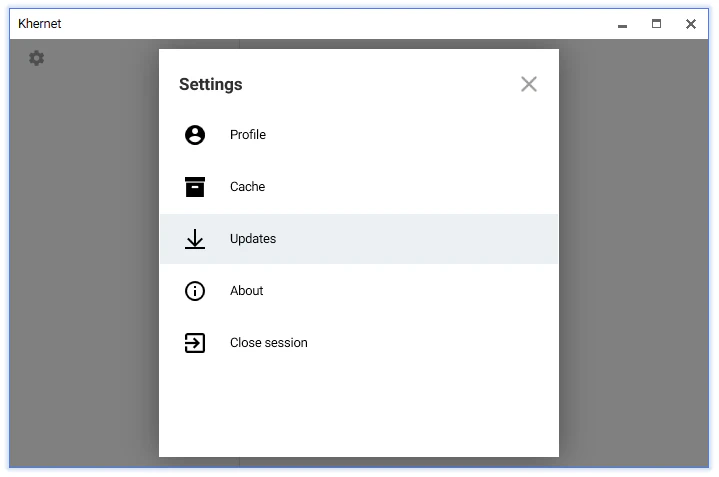
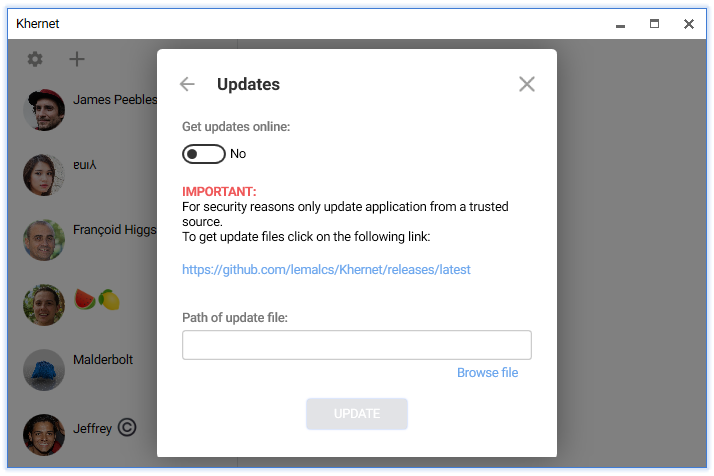
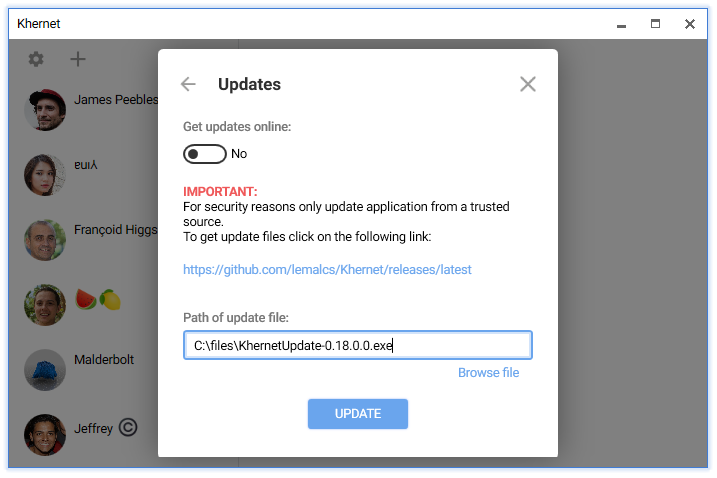
In the dialog, select Updates.
In the Updates dialog, click Browse file and select the installer you downloaded in step 1.
Alternatively, type the file path manually in the Path of update file field.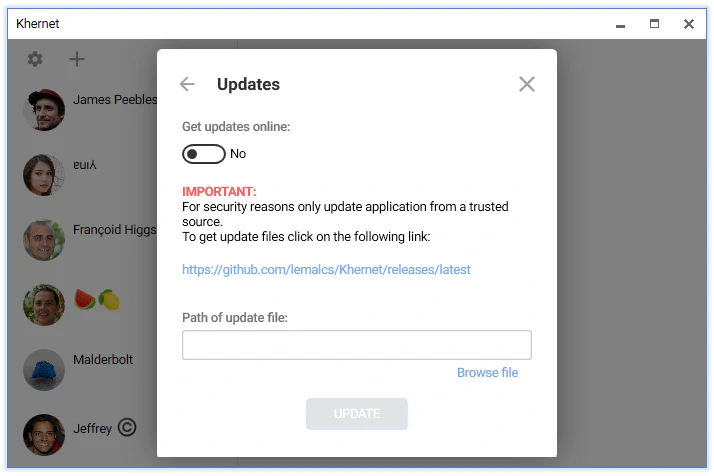
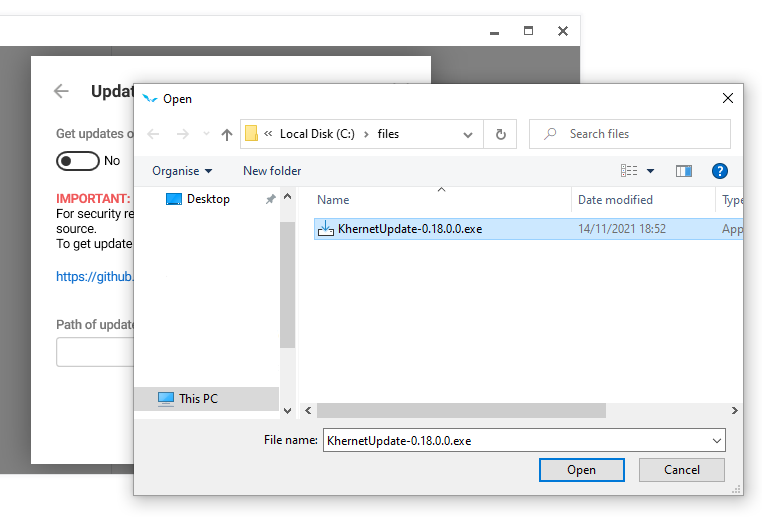
File names vary depending on the version.
Click Update to start the installation.
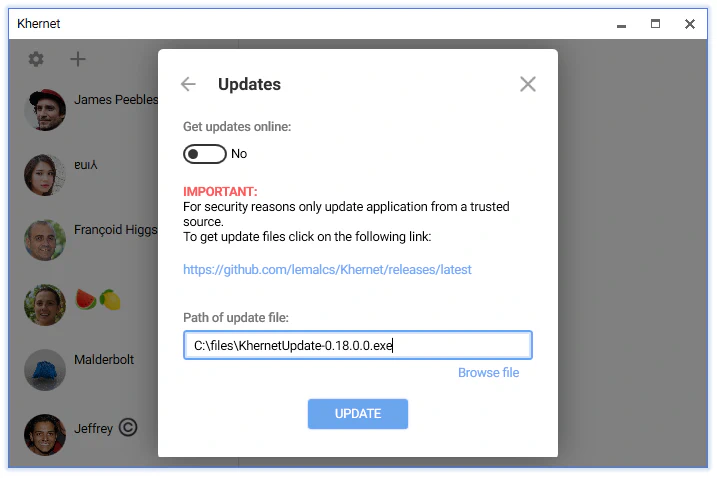
Once the update finishes, Khernet will restart automatically.
Updating from version 0.16.0
If you’re still using version 0.16.0, you must use the installer to upgrade to version 0.17.0.0.
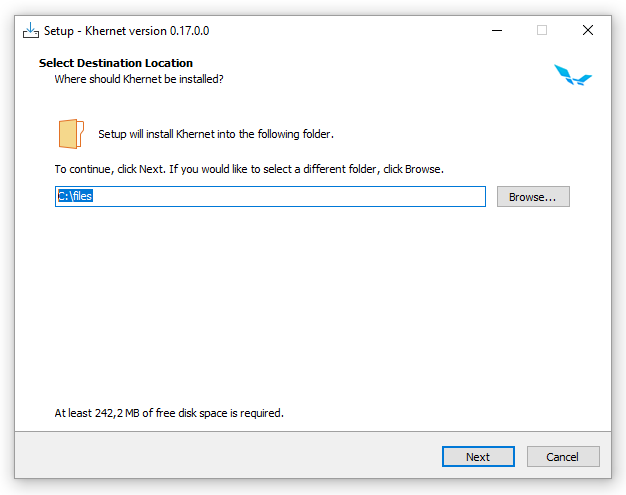
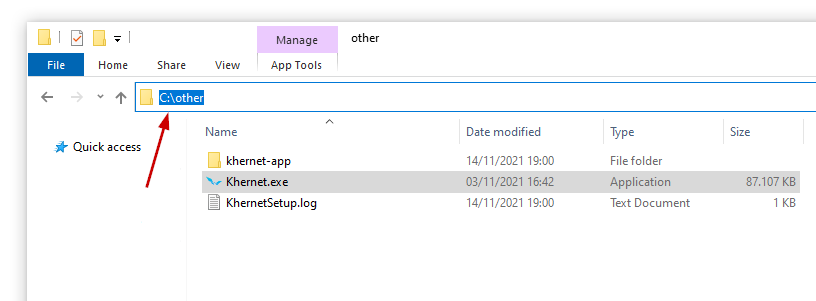
Run the installer and select the folder where your Khernet.exe is located. Use Browse to find it.
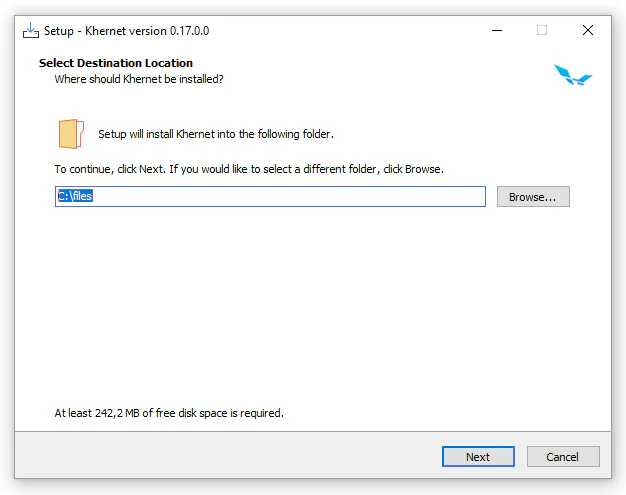
To confirm the right folder:
- Khernet.exe should be 85 MB (87104 KB).
- The folder should also contain a subfolder named khernet-app.
Example path:
C:/other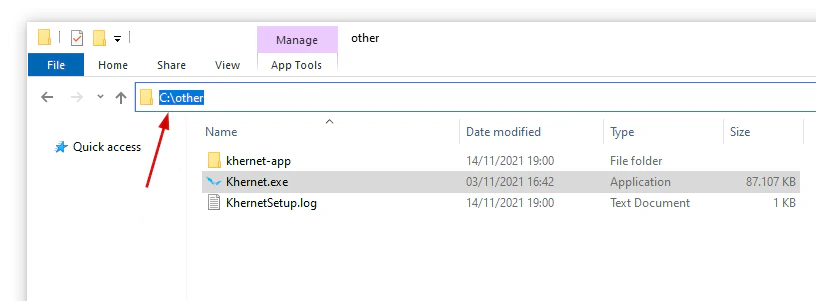
Click Next after selecting the folder.
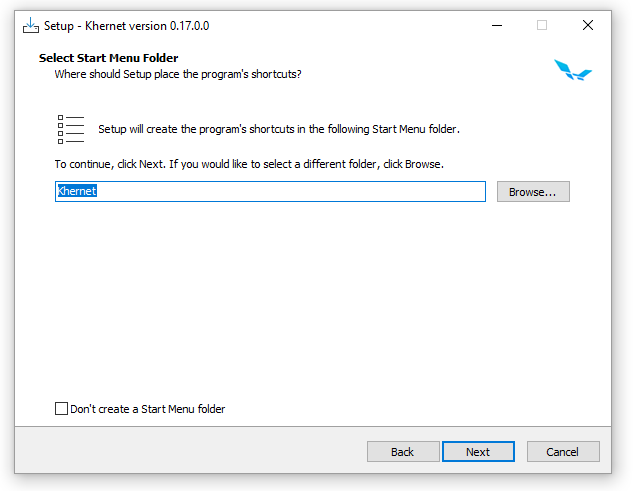
In Select Start Menu Folder, type a name for the shortcut or check Don’t create a Start Menu Folder. Then click Next.
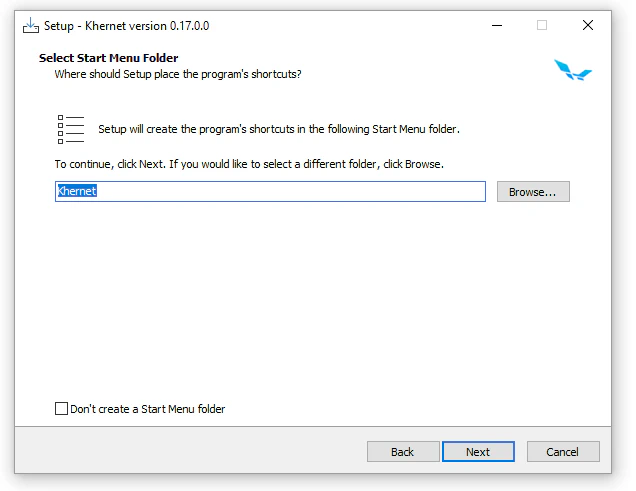
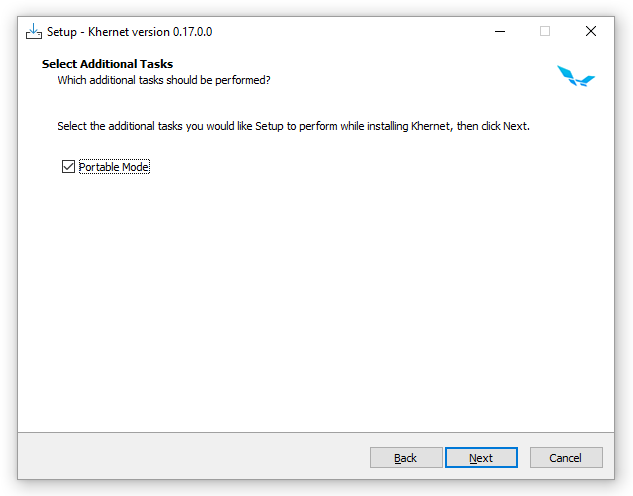
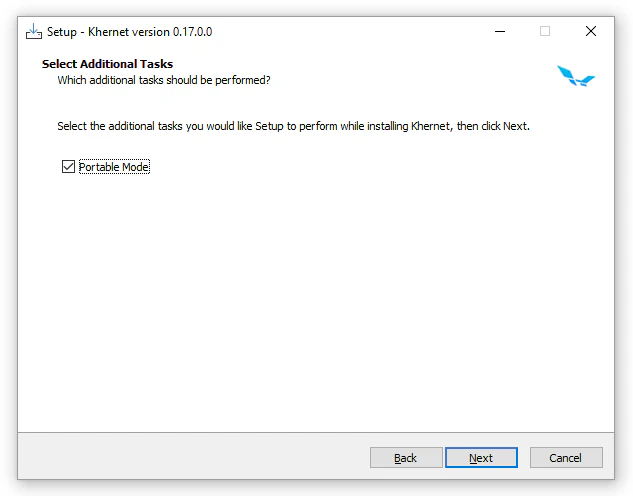
Check Portable mode if you want only the main application (no uninstaller). Leave it unchecked for a standard installation. Click Next.
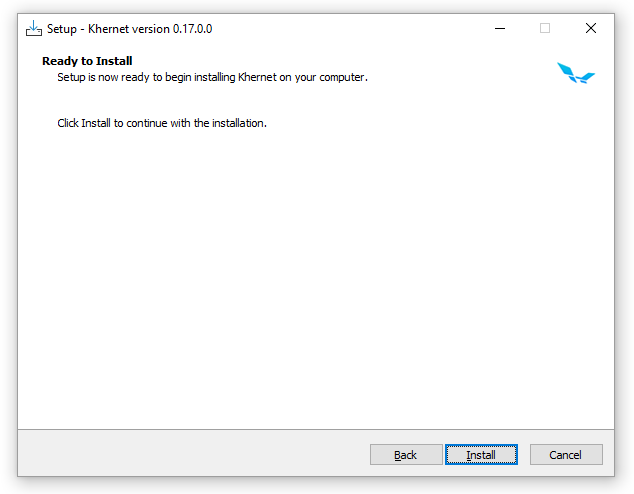
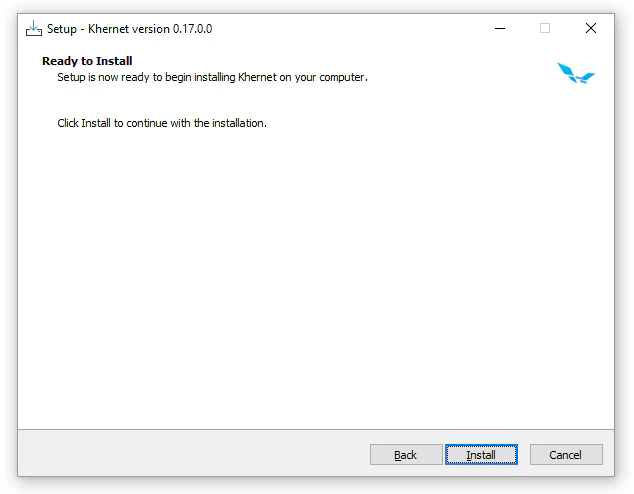
Click Install to begin.
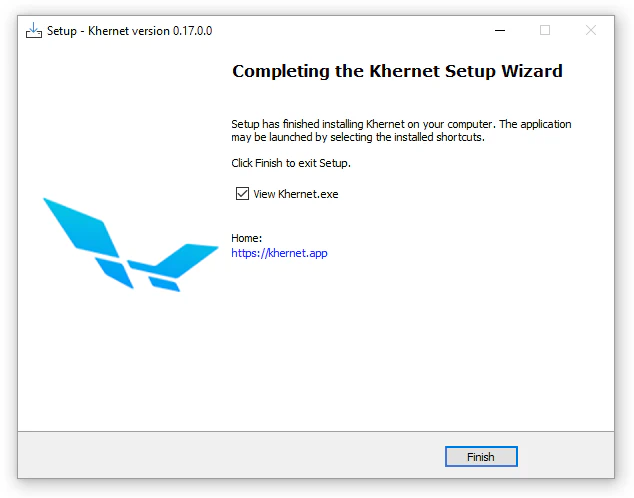
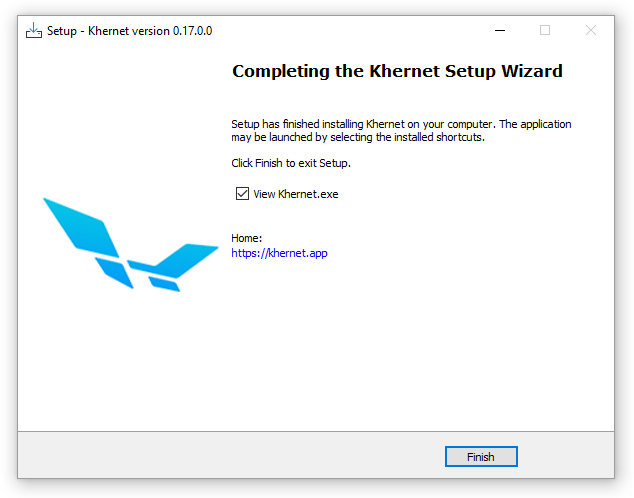
When finished, you can launch the app right away by checking View Khernet.exe. Otherwise, leave it unchecked and click Finish.