You can send, reply to, and resend files in the same way as text messages.
Tip
- Use the clip icon or drag & drop to send files.
- Press Ctrl+V to paste from the clipboard.
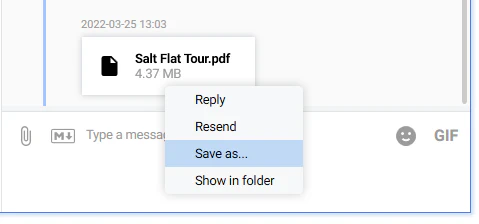
- Right-click a file message to Save as….
Overview
Khernet supports sending many file types:
- Images
- Audio
- Video
- Binary files
- GIFs
There are three main ways to send a file.
Send from file system
Click the clip icon at the top-left of the text box.
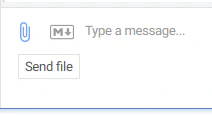
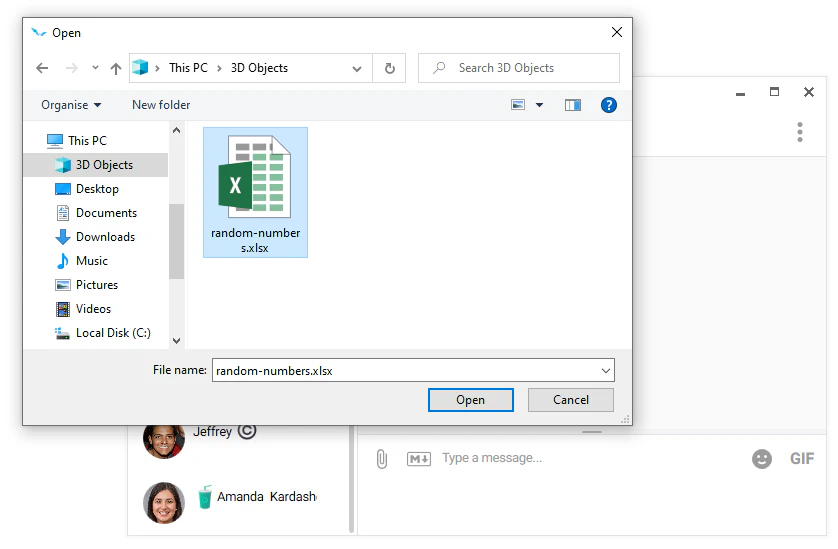
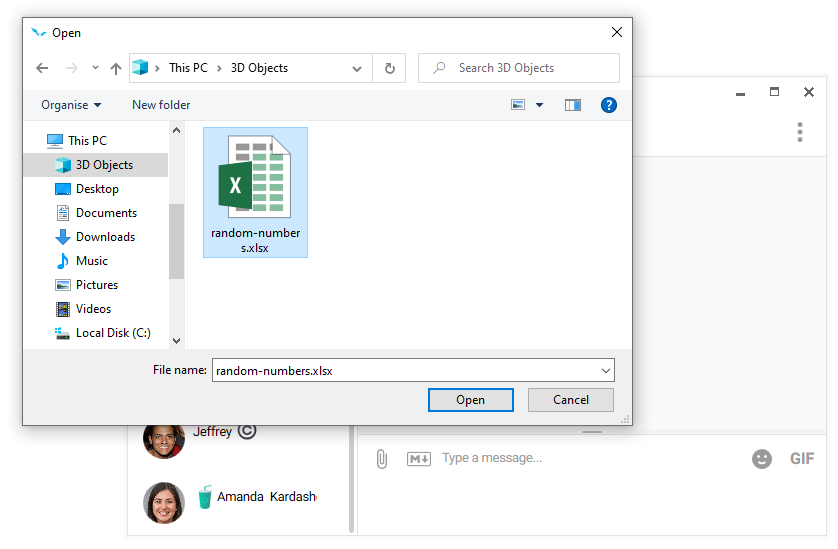
In the Open dialog, select the file you want and click Open.
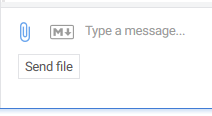
The file will appear in the chat list with an animation showing its upload status.
Tip
Drag and drop a file into the chat list to send it instantly.
Send from clipboard
You can also paste files directly:
- Click inside the text box and press Ctrl+V.
- Or right-click inside the text box and choose Paste.
Save to local system
Files are stored in the app and can be saved locally:
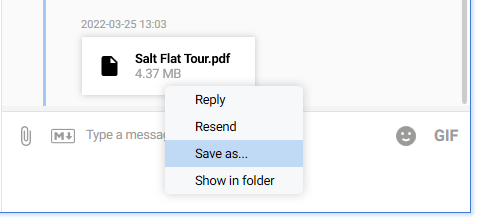
Right-click the file message and choose Save as….
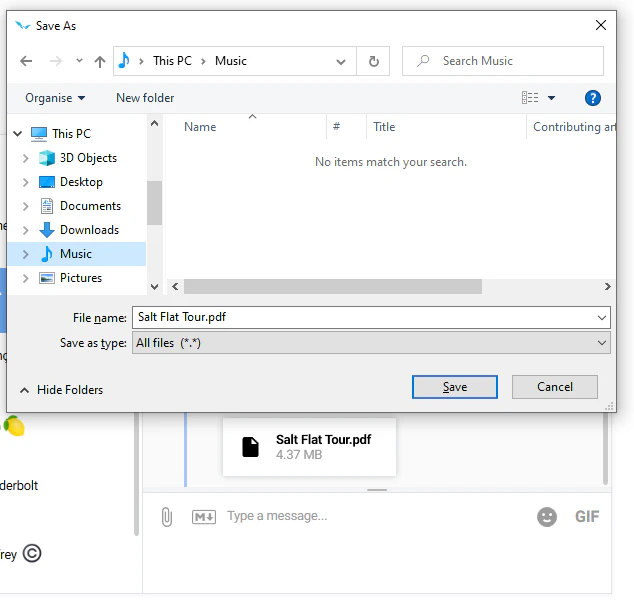
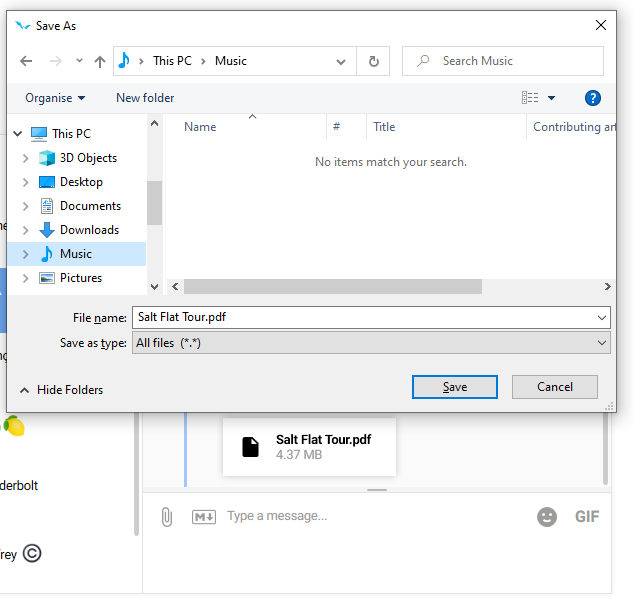
In the Save dialog, pick a location. You can also rename the file before clicking Save.
Images
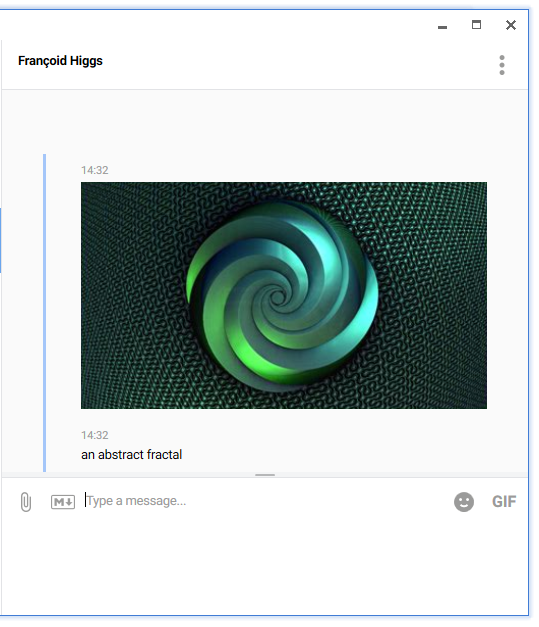
Supported formats: JPG, PNG, BMP, TIFF, WEBP
Screenshots can also be sent using the clipboard method.
Tip
Click an image thumbnail to view it in full screen.
Audio
Supported formats: MP3, WAV, WMA, M4A, ACC
Audio controls
Audio message in chat
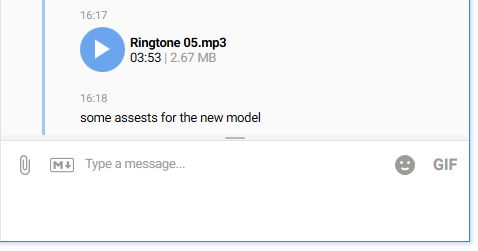
- Play
- Pause
Embedded player
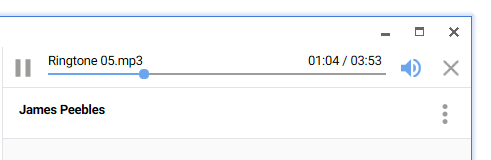
- Play / Pause
- Volume up / Volume down
- Mute
Audio files continue playing even if the main screen is hidden.
Video
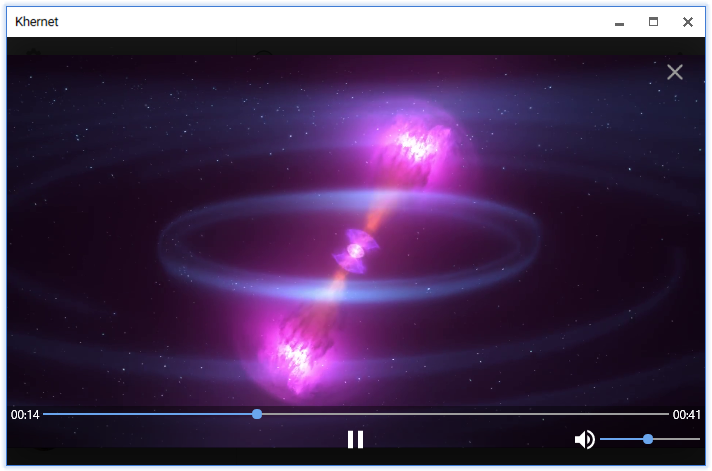
Play videos by clicking the message thumbnail.
Supported controls:
- Play / Pause
- Volume up / Volume down
- Mute
- Seek timeline position
Videos always play in full screen.
Video playback also continues if the main screen is hidden.
Binary files
Any non-recognized format can be sent as a binary file.
Maximum individual file size: 2 GB
GIFs
GIFs can be sent like any other file.
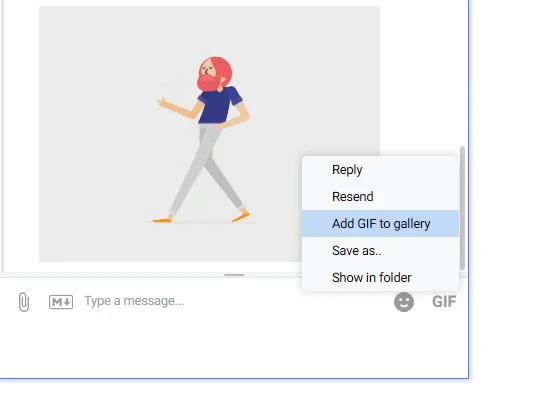
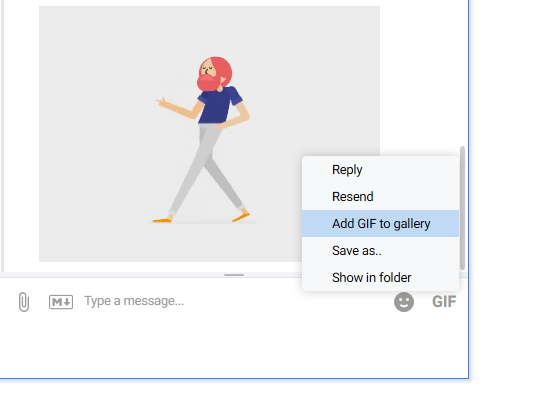
Save a GIF by right-clicking it and choosing Add GIF to gallery.
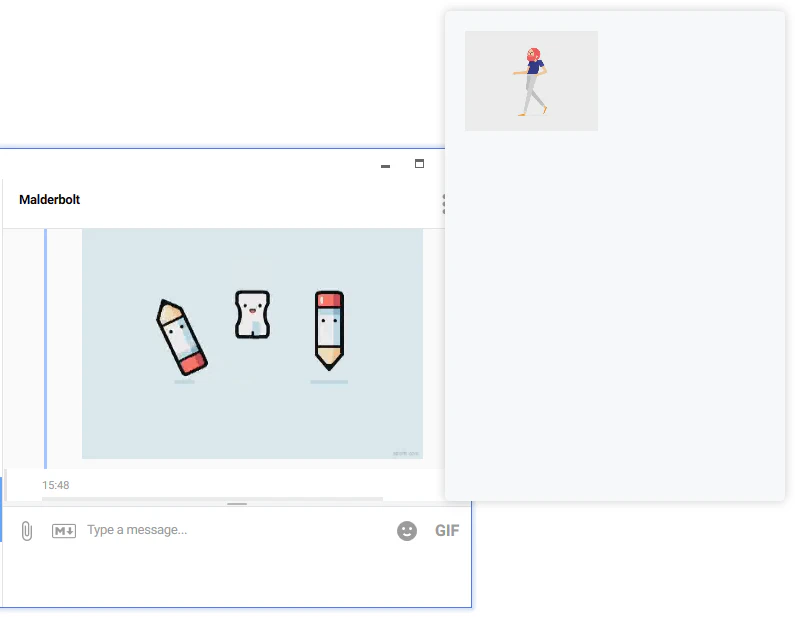
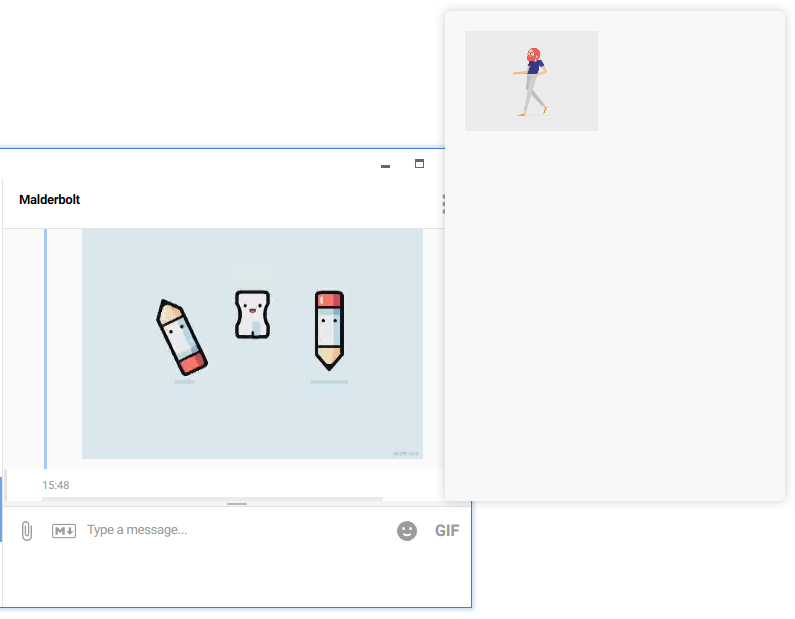
To reuse, click the GIF icon, select one from the gallery, and send it.
Tip
Click a GIF message thumbnail to view it in full screen.